> For the complete documentation index, see [llms.txt](https://docs.inji.io/llms.txt). Markdown versions of documentation pages are available by appending `.md` to page URLs; this page is available as [Markdown](https://docs.inji.io/inji-wallet/inji-mobile/technical-overview/integration-guide/building-verifiable-credentials-wallet-with-inji-libraries.md).
# Building Verifiable Credentials Wallet with Inji Libraries
## Overview
This guide provides step-by-step documentation for building a **Kotlin-based verifiable credential wallet** from scratch using **Inji stack libraries**. The purpose of this guide is to demonstrate how developers can leverage the Inji ecosystem to securely **download, verify, store, and present verifiable credentials (VCs)**. The guide is currently focused on **Android-based implementations**, but all the Inji libraries are also available in **Swift for iOS**.
This guide is aimed at developers who want to either **create a custom wallet** or **enhance an existing application** to support VC-based digital identity functionality.
The sample app illustrates how to:
* Securely generate and manage cryptographic keys
* Download credentials from trusted issuers
* Verify the authenticity of credentials
* Store and display credentials to end users
* Optionally present credentials via QR code
{% hint style="success" %}
**Note:**\
The terms **“custom wallet”** and **“verifiable credentials wallet”** are used interchangeably throughout this document. Both refer to a wallet application built using Inji libraries to securely **download, verify, store, and present verifiable credentials (VCs)**.
{% endhint %}
### Key Features of the Custom Wallet
By following this “build your own digital credentials wallet” flow, your application achieves:
* **Secure Key Management**
* Hardware-backed RS256/ES256 keys, safely managed by Secure Keystore.
* **End-to-End Credential Issuance**
* Complete flow from user authentication to credential download.
* **Credential Verification**
* Ensures authenticity with cryptographic checks and expiry validation.
* **Secure Storage & Display**
* Verified credentials are saved in the app and rendered as cards for users.
* **Issuer Management**
* Supports multiple trusted issuers and their metadata.
* **Credential Presentation**
* Option to present credentials via QR code (Pixelpass).
* **Extensible Architecture**
* Modular libraries allow developers to extend or replace parts of the flow.
**For the detailed feature list of Inji Mobile Wallet, refer** [**here**](https://docs.inji.io/inji-wallet/inji-mobile/overview/features) **!**
### Prerequisites for Building a Custom Wallet
Before starting, ensure you have:
* **Android Studio** (latest stable version)
* **Kotlin** (with Gradle support)
* **Internet access** for API calls to the Authorization Server and Issuing Authority
* **Trusted Issuer configuration** (issuer metadata like `client_id`, `credential_configuration_id`, `redirect_uri`, etc.)
### Inji Libraries Used for Building a Custom Wallet
The custom wallet application integrates several **Inji stack libraries**, which provide ready-made methods for credential flows.
| Component | Library | Primary Function |
| ------------------------------- | ----------------------------------------------------------------------- | ------------------------------------------------------------------------------------------------------------------------------------------------------------------------------ |
| **Secure Keystore** | [secure-keystore](https://github.com/mosip/secure-keystore/tree/master) | Generates and stores cryptographic key pairs (RS256 / ES256). Used to create Proof JWT. |
| **VCI Client** | [inji-vci-client](https://github.com/mosip/inji-vci-client) | Handles the credential issuance protocol: authorization, token exchange, proof generation, and downloading the credential. |
| **VC Verifier** | [vc-verifier](https://github.com/mosip/vc-verifier) | Verifies credentials by checking digital signatures, expiration, and issuer authenticity. |
| **Pixelpass** (optional) | [pixelpass](https://github.com/mosip/pixelpass/tree/master) | Generates QR codes for credential presentation. |
| **Issuing Authority (Certify)** | [inji-certify](https://github.com/mosip/inji-certify) | Authority from which the final credential (VC) is issued and downloaded. |
| **Authorization Server (AS)** | (External) | Service where users authenticate to get authorization codes. In case of Inji eSignet can also be used as authorization server as it is a MOSIP product so both are compatible. |
### Setup
1. **Create Activity**
* In Android Studio, create a new project with an empty activity.
2. **Add Dependencies**
* Open `app/build.gradle` and add the required dependencies for the Inji libraries:
`implementation "org.inji:inji-actor-secure-keystore:" implementation "org.inji:inji-vci-client:" implementation "org.inji:inji-vc-verifier:" implementation "org.inji:inji-pixelpass:" // optional`
3. **Resolve Dependencies**
* Sync the project to fetch dependencies.
* You can now call the methods provided by the Inji libraries.
### **Step-by-step guide:**
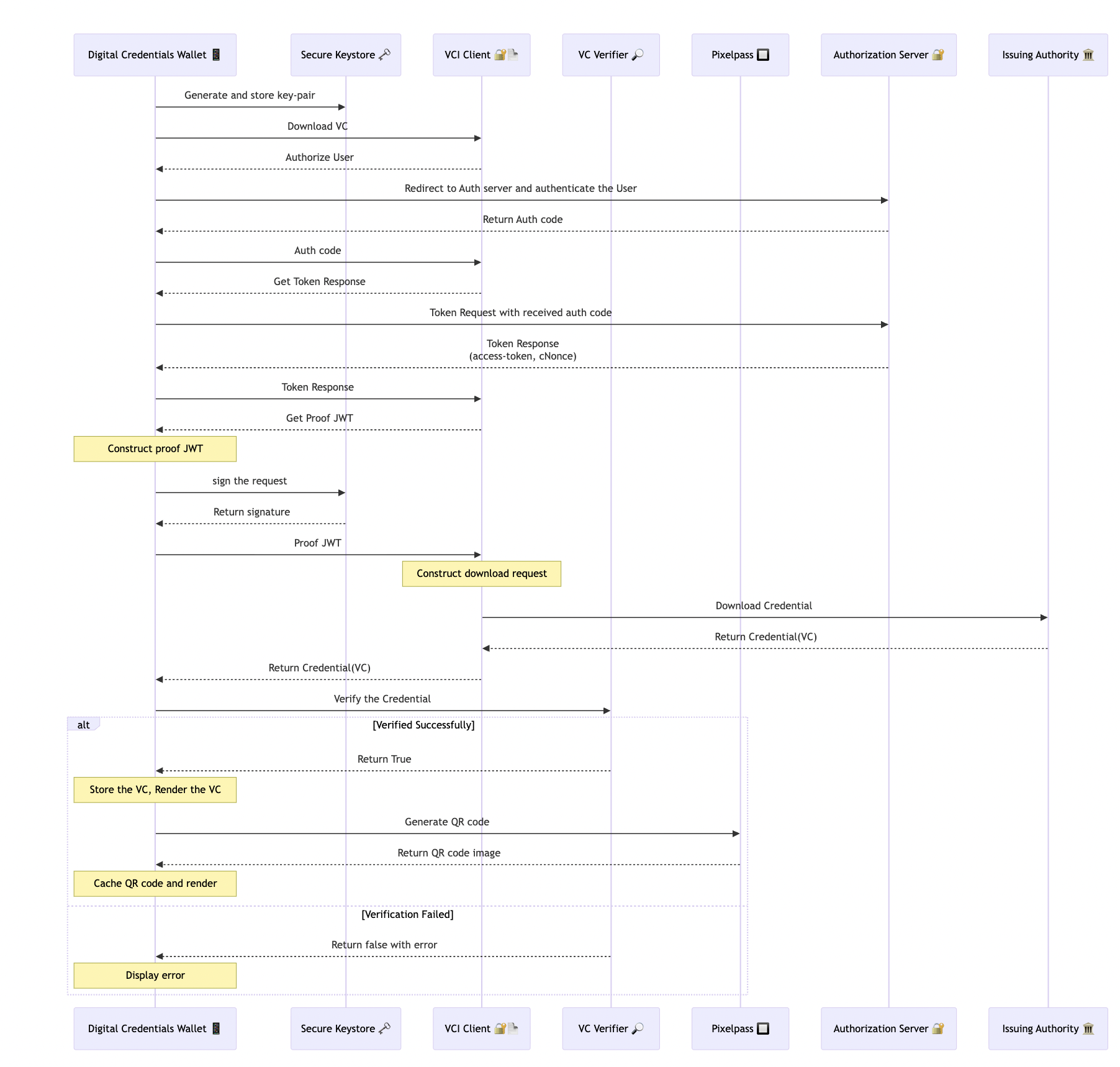
The flow below shows how the custom verifiable credentials wallet downloads and verifies a credential.
#### Step 1: Initialization & Key Generation
* Call `generate_key_pair()` from **Secure Keystore**.
* Generates RS256 or ES256 key pair, stored in Android hardware keystore.
* Retrieve **issuer metadata** (`client_id`, `redirect_uri`, etc.) from trusted issuers list.
* Call `request_credential_from_trusted_issuer()` in **VCI Client** , passing credential configuration and client metadata.
#### Step 2: User Authorization
* **VCI Client** returns a callback requiring user authorization.
* Wallet opens a web-view to the **Authorization Server**.
* User authenticates, and an **authorization code** is returned to the wallet.
* Wallet sends the authorization code to the **VCI Client**, fulfilling the callback.
#### Step 3: Token Exchange
* VCI Client triggers `get_token_response` callback.
* Wallet makes a **POST request** to the token endpoint with auth code.
* **Authorization Server** responds with an access token + `cNonce`.
* Wallet returns a token response to the **VCI Client**.
#### Step 4: Proof Generation & Credential Download
* VCI Client requests a Proof JWT (`get_proof_JWT`).
* Wallet constructs JWT with claims: `nonce`, `aud`, `iat`, `exp`.
* Wallet uses **Secure Keystore** to sign JWT.
* Wallet sends signed Proof JWT to **VCI Client**.
* **VCI Client** requests credentials from **Issuing Authority** and returns the final credential JSON.
#### Step 5: Verification & Storage
* Wallet calls `verify()` from **VC Verifier 🔎**, passing credential JSON.
* **VC Verifier** checks validity (signature, expiry, issuer).
* Verification result returned (`True/False` with message).
* If valid, the wallet stores credentials and renders as a card view.
#### Optional Step: Credential Presentation
* Wallet calls **Pixelpass** to generate QR code.
* Pixelpass returns a QR image for displaying to the verifier.
{% hint style="success" %}
Using **Inji libraries and SDKs**, which are built on open standards, developers can build their own custom wallets or integrate these libraries into existing applications, effectively transforming them into **VC-based wallets**.\\
{% endhint %}
---
# Agent Instructions
This documentation is published with GitBook. GitBook is the documentation platform designed so that both humans and AI agents can read, navigate, and reason over technical content effectively. Learn more at gitbook.com.
## Querying This Documentation
If you need additional information that is not directly available in this page, you can query the documentation by asking a question.
Perform an HTTP GET request on the following URL with the `ask` and `goal` query parameters:
```
GET https://docs.inji.io/inji-wallet/inji-mobile/technical-overview/integration-guide/building-verifiable-credentials-wallet-with-inji-libraries.md?ask=&goal=
```
`ask` is the immediate question: it should be specific, self-contained, and written in natural language.
`goal` is what the user is ultimately trying to achieve, the reason they need the answer. Sharing it helps GitBook give you a better, more relevant answer. A goal is most helpful when it describes the outcome the user wants rather than restating the question. For example, with `ask=how do I create an API token`, a goal like `automate deployments from our CI pipeline` lets GitBook tailor the answer to that use case.
The response will contain a direct answer to the question and relevant excerpts and sources from the documentation.
Use this mechanism when the answer is not explicitly present in the current page, you need clarification or additional context, or you want to retrieve related documentation sections.