> For the complete documentation index, see [llms.txt](https://docs.inji.io/llms.txt). Markdown versions of documentation pages are available by appending `.md` to page URLs; this page is available as [Markdown](https://docs.inji.io/inji-verify/functional-overview/workflow/upload-or-scan-qr-code-flow.md).
# Upload or Scan QR Code flow
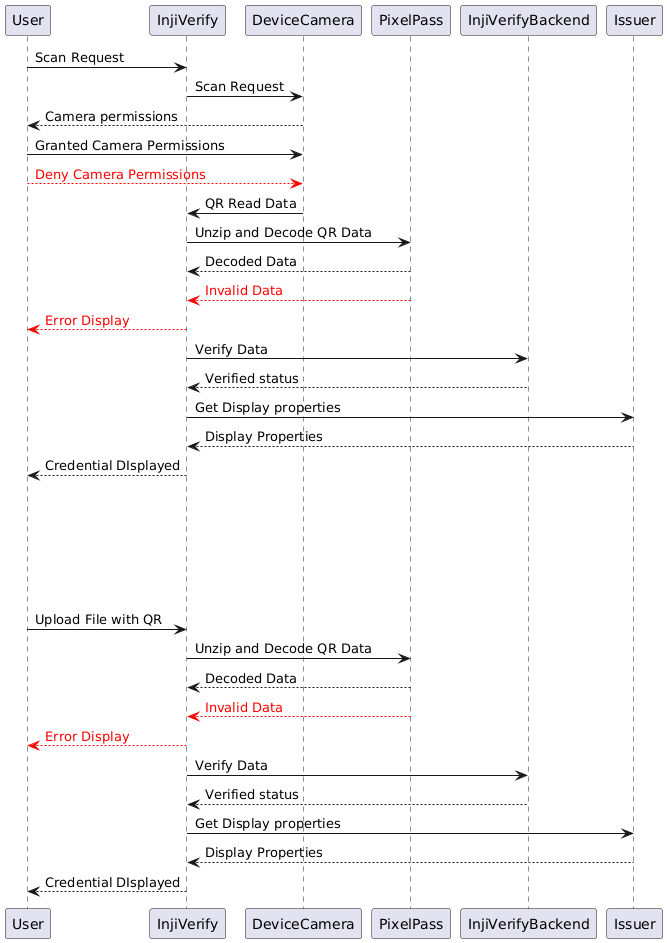
### Upload / Scan QR Code flow
#### Understanding the workflow
**Embedded VC data in QR code**
* The user sends a scan request to the Inji verify portal.
* Inji verify portal sends a scan request to the Device camera.
* The user will be prompted to ask for Device camera permissions.
* The user grants camera permissions.
* The user scans the QR code using the device camera, and the QR data is returned to the Inji Verify portal.
* Inji Verify passes the QR data to the Pixel Pass SDK.
* The Pixel Pass SDK returns the decoded data to Inji Verify.
* Inji Verify then passes the decoded data to the Verification SDK for verification.
* The status is returned to the Inji Verify portal from the Verification SDK.
* Inji Verify retrieves the display properties of the credential from the issuer’s well-known configuration.
* Finally, Inji Verify displays the credential details using the fetched display properties.
* The [**pixel-pass library**](https://www.npmjs.com/package/@mosip/pixelpass/v/0.1.6) fails to decode the data
* Inji verify goes back to the home screen and displays the *QR code format not supported* error
* The user denies the camera permissions and the *Camera permissions denied* screen appears on the Inji verify portal
**OpenID4VP (Online Sharing)**
* **User Scans QR Code:**
* The user opens the Inji Verify portal and scans the QR code using the provided scanner interface in the portal.
* The QR code contains an authorization request with the URL of the Inji Web **authorize endpoint** and parameters like `response_type`, `presentation_definition`, and the **resource URL** from Durian.
* **Inji Verify Constructs Authorization Request:**
* Inji Verify appends the necessary parameters to the authorization request:
* **client\_id**: Identifies the verifier (Inji Verify).
* **redirect\_uri**: Specifies where the user should be redirected after the authorization process.
* **GET Request to Inji Web Authorization Endpoint:**
* Inji Verify makes a secure GET call to the **authorize endpoint** of Inji Web, sending the constructed authorization request.
* **Verification of Verifier (Inji Verify) by Inji Web:**
* Inji Web checks its internal configuration for trusted verifiers. It verifies the `client_id` sent by Inji Verify to ensure it is authorized to request access to the VC stored in Durian.
* **Retrieving the VC from Inji Web:**
* Upon successful verification, Inji Web retrieves the Verifiable Credential (VC) from the Durian storage (or any specified secure VC storage).
* Inji Web generates a **vp\_token** containing the VC in JSON format and redirects the user back to Inji Verify with the **vp\_token** as part of the response.
* **Inji Verify Receives and Verifies VC:**
* Inji Verify receives the **vp\_token** containing the VC.
* It performs a thorough verification of the received VC by checking:
* The validity of the VC against the issuer's key (issuer key verification).
* The integrity of the credential ensures it has not been tampered with.
* **Displaying the Verified Credential:**
* After successful verification and decoding (in case of SD-JWT credentials), Inji Verify renders the verified credential and its verification status in the user interface. If the VC is returned in SD-JWT encoded format (as a string), it is first decoded using the @sd-jwt/decode library before being displayed.
* **Completion of Verification:**
* The user is presented with the verified credential, confirming successful online sharing and validation using OpenID4VP standards.
### Upload QR flow
#### Embedded VC data in QR code
* The user uploads a file with a QR Code.
* Inji Verify passes the QR data to the Pixel Pass SDK.
* The Pixel Pass SDK returns the decoded data to Inji Verify.
* Inji Verify then passes the decoded data to the Verification SDK for verification.
* The status is returned to the Inji Verify portal from the Verification SDK.
* Inji Verify retrieves the display properties of the credential from the issuer’s well-known configuration.
* Finally, Inji Verify displays the credential details using the fetched display properties.
* However, if [**Pixel Pass**](https://www.npmjs.com/package/@mosip/pixelpass/v/0.1.6) fails to decode the data:
* Inji Verify navigates back to the home screen and displays the "QR code format not supported" error.
#### OpenID4VP (Online Sharing)
* **User Uploads QR Code:**
* The user opens the Inji Verify portal and uploads a QR code file using the upload functionality in the portal.
* **QR Code Details:**
* The uploaded QR code contains an authorization request with the URL of the Inji Web **authorize endpoint** and parameters like `response_type`, `presentation_definition`, and the **resource URL** from Durian.
* **Inji Verify Constructs Authorization Request:**
* Inji Verify appends the necessary parameters to the authorization request:
* **client\_id**: Identifies the verifier (Inji Verify).
* **redirect\_uri**: Specifies where the user should be redirected after the authorization process.
* **GET Request to Inji Web Authorization Endpoint:**
* Inji Verify makes a secure GET call to the **authorize endpoint** of Inji Web, sending the constructed authorization request.
* **Verification of Verifier (Inji Verify) by Inji Web:**
* Inji Web checks its internal configuration for trusted verifiers. It verifies the `client_id` sent by Inji Verify to ensure it is authorized to request access to the VC stored in Durian.
* **Retrieving the VC from Inji Web:**
* Upon successful verification, Inji Web retrieves the Verifiable Credential (VC) from Durian storage (or any specified secure VC storage).
* Inji Web generates a **vp\_token** containing the VC in JSON format and redirects the user back to Inji Verify with the **vp\_token** as part of the response.
* **Inji Verify Receives and Verifies VC:**
* Inji Verify receives the **vp\_token** containing the VC.
* It performs a thorough verification of the received VC by checking:
* The validity of the VC against the issuer's key (issuer key verification).
* The integrity of the credential, ensuring it has not been tampered with.
* The VC verification happens at Inji Verify Backend, the Verify UI sends the VC to its backend and performs the verification using [vc-verfier](https://github.com/mosip/vc-verifier/tree/master/vc-verifier/kotlin) library.
* **Displaying the Verified Credential:**
* After successful verification and decoding (in case of SD-JWT credentials), Inji Verify renders the verified credential and its verification status in the user interface. If the VC is returned in SD-JWT encoded format (as a string), it is first decoded using the @sd-jwt/decode library before being displayed.
* **Completion of Verification:**
* The user is presented with the verified credential, confirming successful online sharing and validation using OpenID4VP standards.
**Additional Features**
* The Pixel Pass library now supports decoding CBOR QR codes and can provide details of verifiable credential (VC) data.
* Inji Verify can now handle the display of expired credentials, in addition to valid and invalid credential displays, using the same verification and display processes.
{% hint style="info" %}
**Note**: To understand the Inji Verify components in detail please refer to the topic [**Components**](/inji-verify/technical-overview/components.md) under [**Technical Overview**](/inji-verify/technical-overview.md) section.
{% endhint %}
---
# Agent Instructions
This documentation is published with GitBook. GitBook is the documentation platform designed so that both humans and AI agents can read, navigate, and reason over technical content effectively. Learn more at gitbook.com.
## Querying This Documentation
If you need additional information that is not directly available in this page, you can query the documentation by asking a question.
Perform an HTTP GET request on the following URL with the `ask` and `goal` query parameters:
```
GET https://docs.inji.io/inji-verify/functional-overview/workflow/upload-or-scan-qr-code-flow.md?ask=&goal=
```
`ask` is the immediate question: it should be specific, self-contained, and written in natural language.
`goal` is what the user is ultimately trying to achieve, the reason they need the answer. Sharing it helps GitBook give you a better, more relevant answer. A goal is most helpful when it describes the outcome the user wants rather than restating the question. For example, with `ask=how do I create an API token`, a goal like `automate deployments from our CI pipeline` lets GitBook tailor the answer to that use case.
The response will contain a direct answer to the question and relevant excerpts and sources from the documentation.
Use this mechanism when the answer is not explicitly present in the current page, you need clarification or additional context, or you want to retrieve related documentation sections.