> For the complete documentation index, see [llms.txt](https://docs.inji.io/llms.txt). Markdown versions of documentation pages are available by appending `.md` to page URLs; this page is available as [Markdown](https://docs.inji.io/inji-verify/functional-overview/end-user-guide/vp-verification-same-device-flow.md).
# VP Verification - Same Device Flow
## Overview
This guide covers the same-device Verifiable Presentation (VP) verification flow, where both the verifier portal and credential wallet operate on the same mobile device. Instead of scanning a QR code, Inji Verify invokes the wallet directly via deep link, enabling seamless app-to-app credential sharing without requiring a second device.
This flow follows the OpenID4VP specification with `response_mode=direct_post`. The wallet receives the authorization request containing credential requirements, authenticates the user, collects consent, and returns the VP response back to Inji Verify for validation and result display.
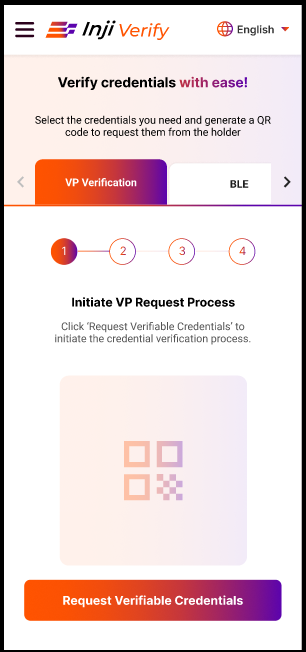
### Step 1: Initiate VP Request Process
Navigate to the **VP Verification** tab in Inji Verify on your mobile device.\
Click **Request Verifiable Credentials** to begin.
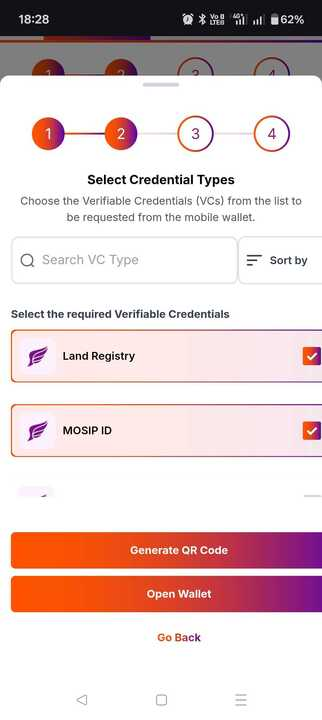
### Step 2: Select Credential Types
A popup titled **Verifiable Credential Selection Panel** appears.\
You can search, sort, and select the required credential types.\
Some credentials may be pre-selected based on configuration.
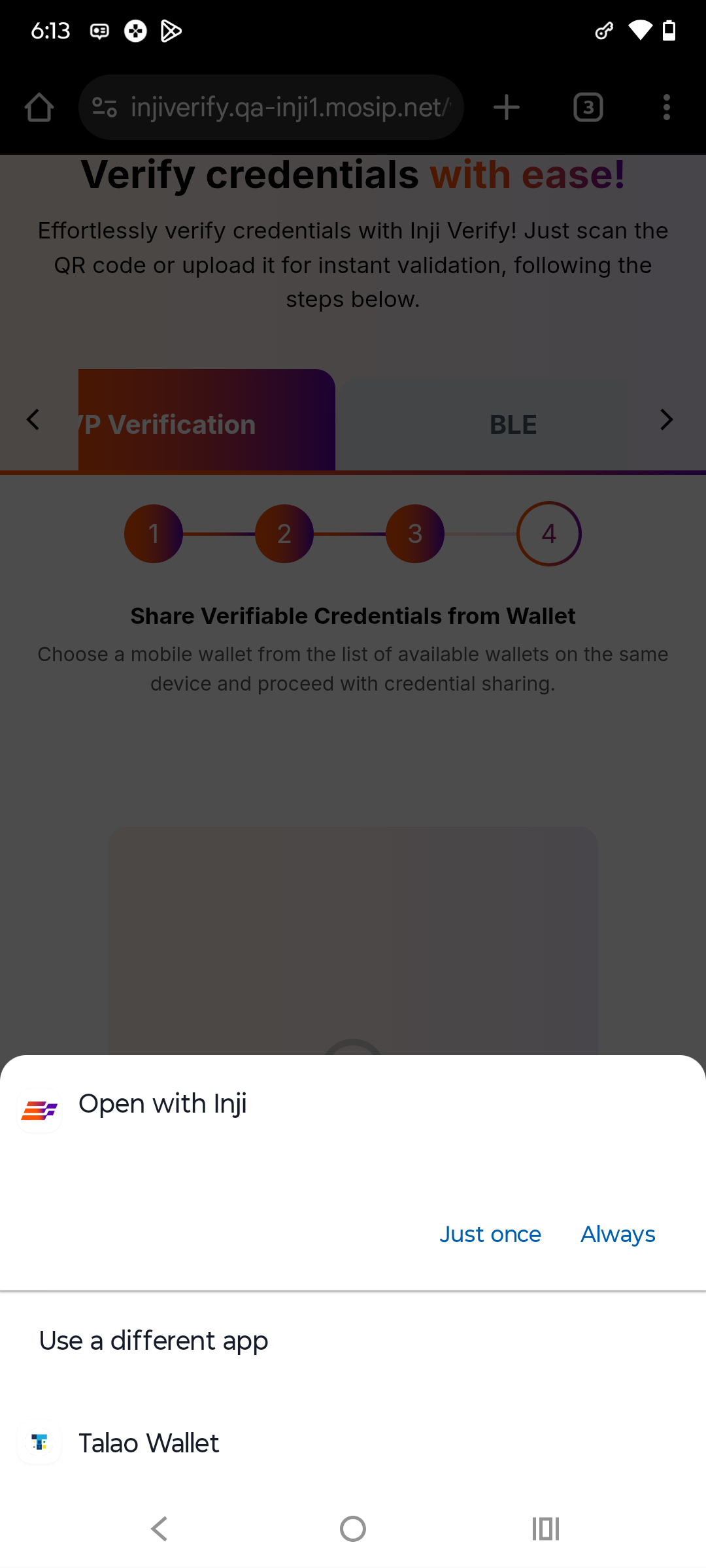
### Step 3: Open Wallet on Same Device
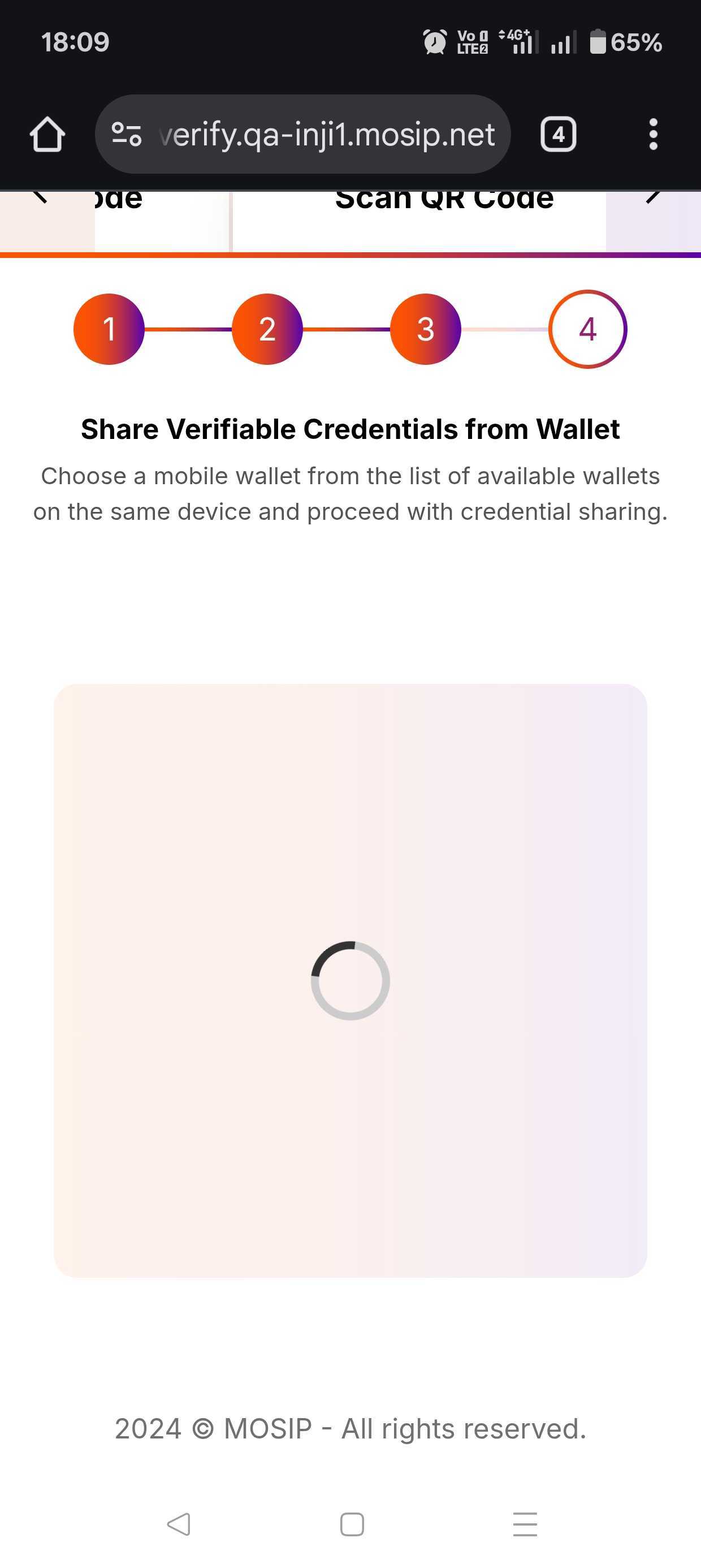
After selecting credentials, a **Wallet Selection Panel** appears listing available wallets on your mobile device.\
Select your preferred wallet. If only one wallet is available, you will be redirected automatically.
### Step 4: Deep Link to Wallet
The system invokes your wallet via deep link (e.g., `injiwallet://vp-request?...`).\
The wallet receives the authorization request with credential requirements.
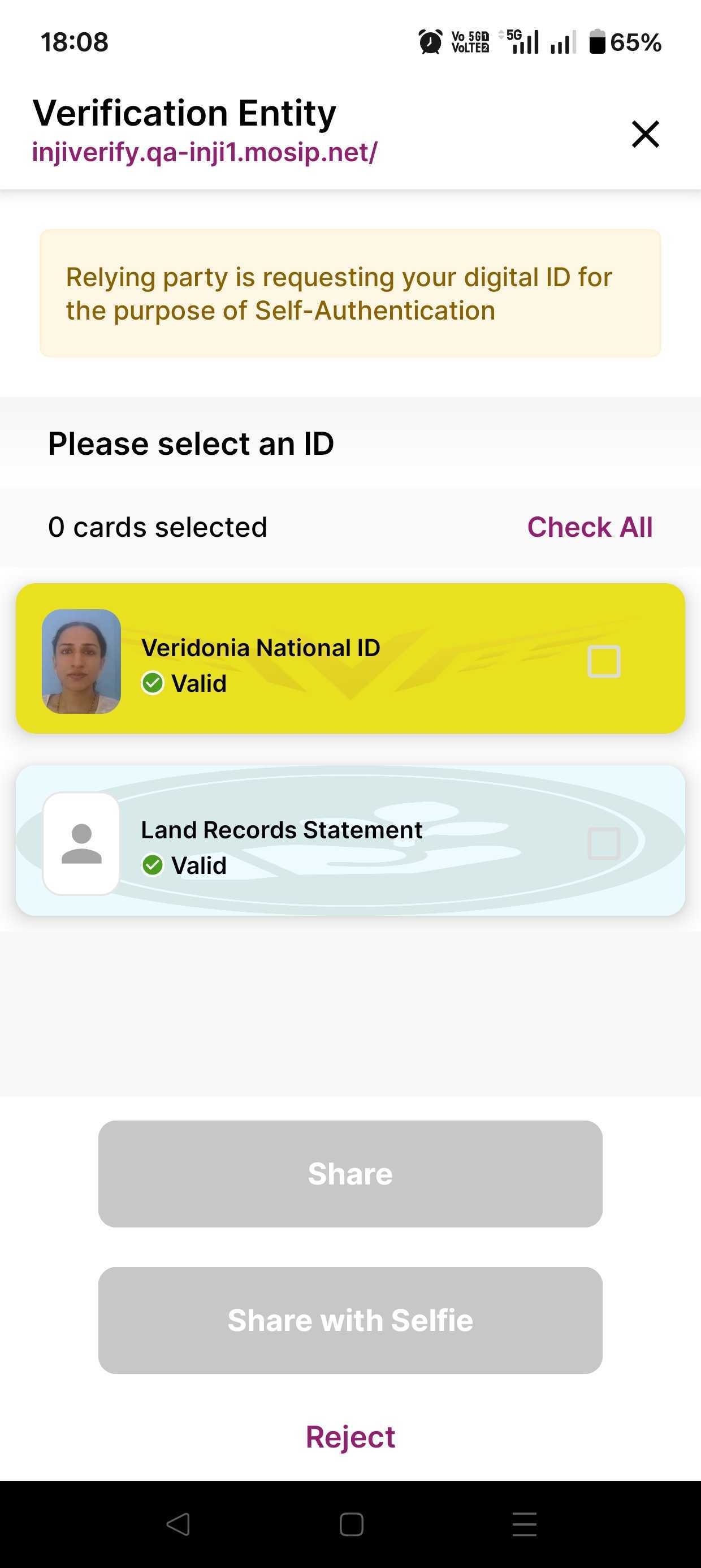
### Step 5: Wallet Authentication & Consent
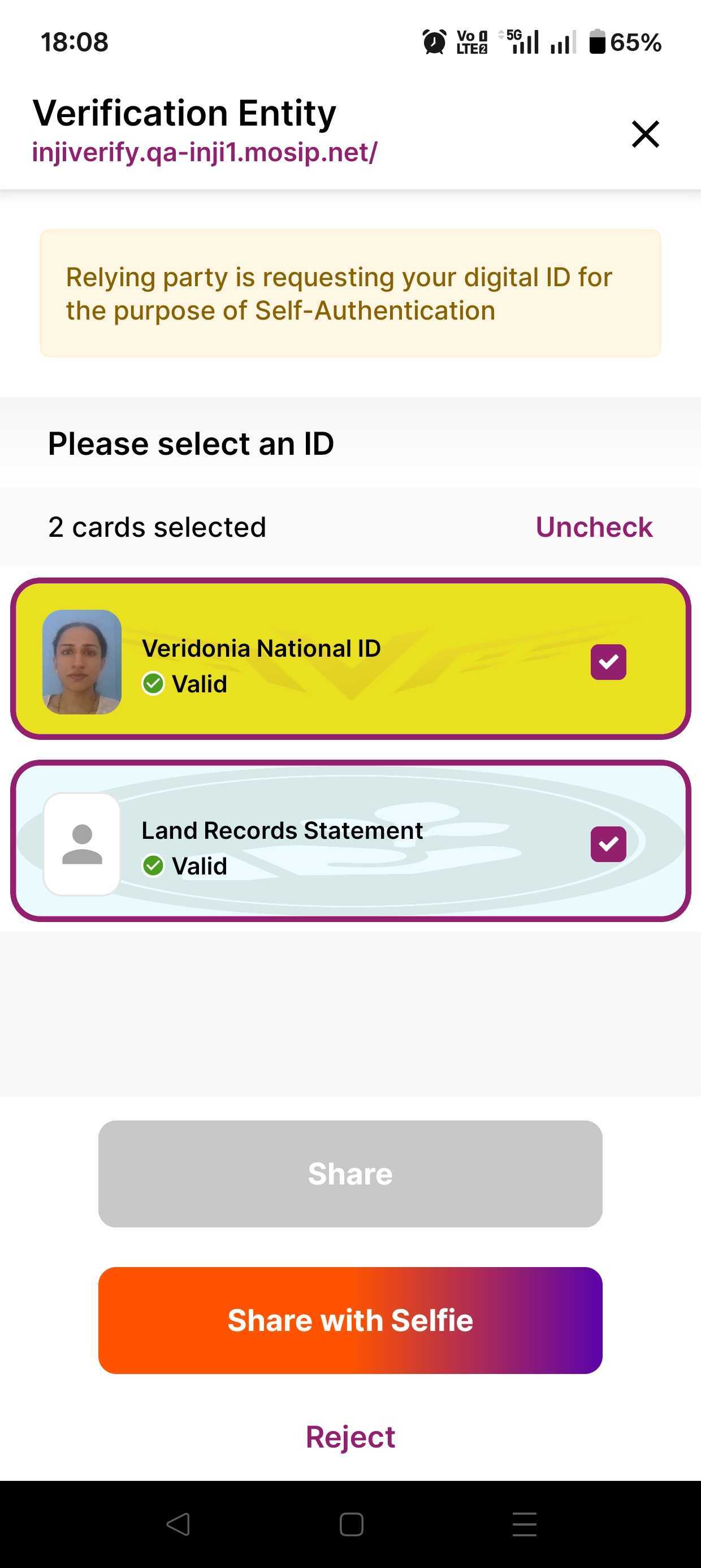
The wallet checks which credentials match the request.\
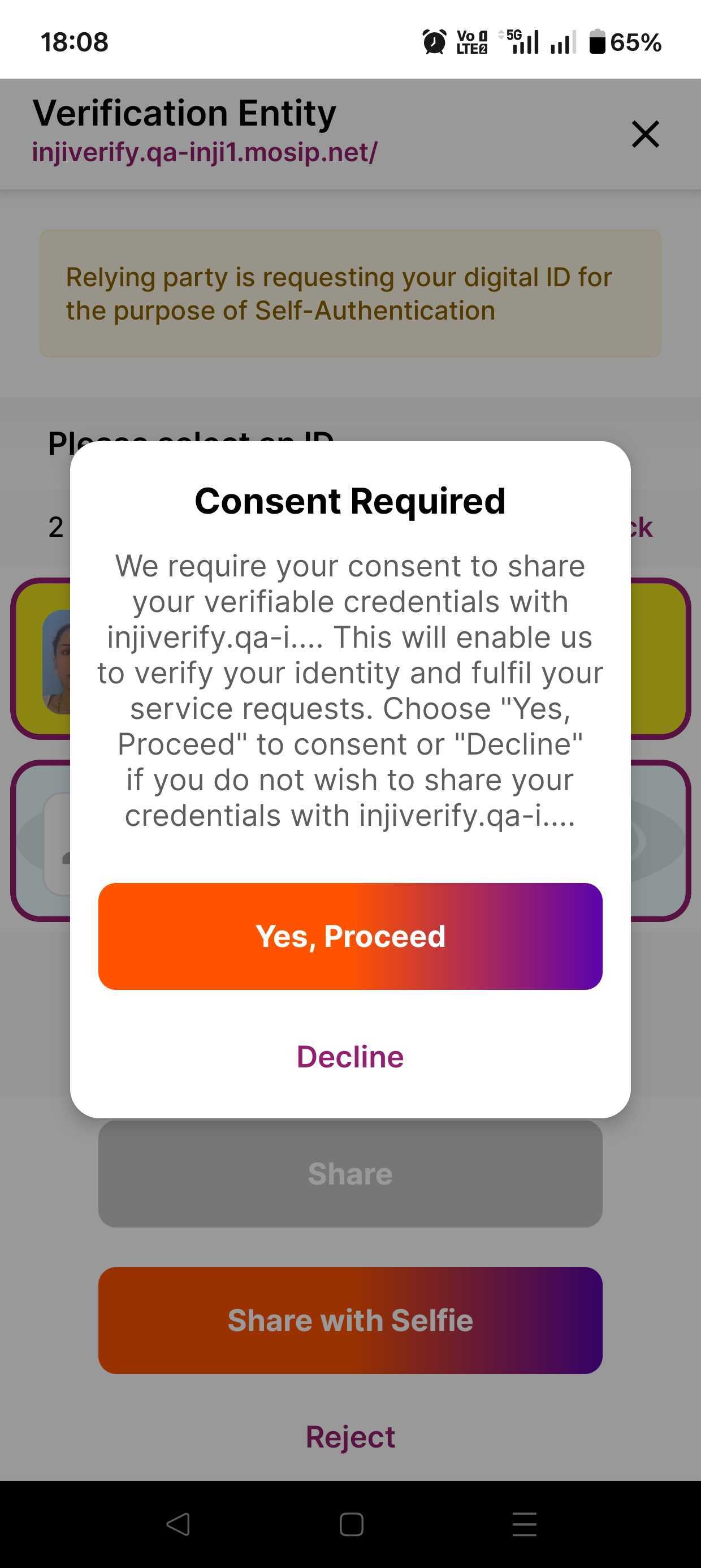
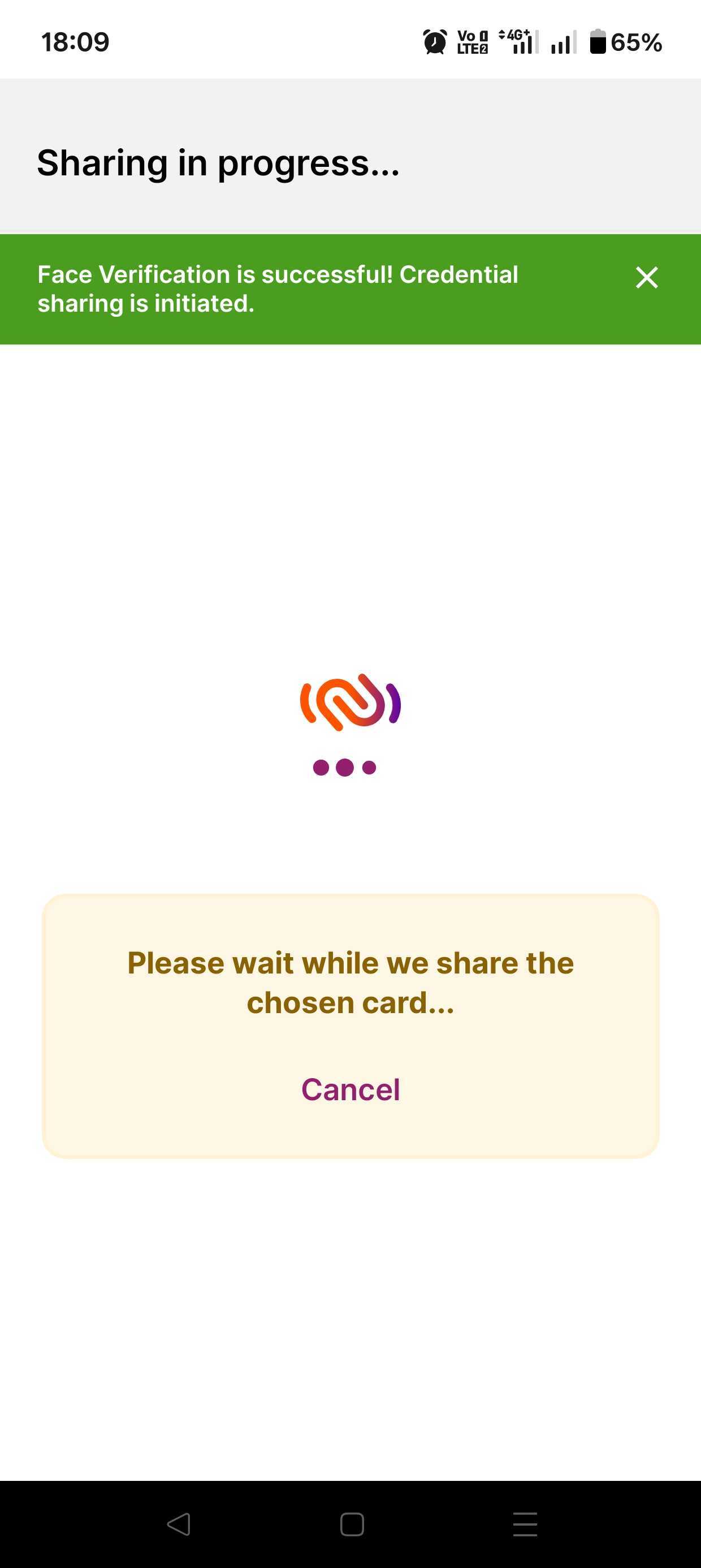
You are prompted to authenticate and provide consent to share the selected credentials.
### Step 6: Wallet Sends VP Response
The wallet prepares the Verifiable Presentation (VP) and returns the `vp_token` in an authorization response via redirect.
### Step 7: View Results in Inji Verify
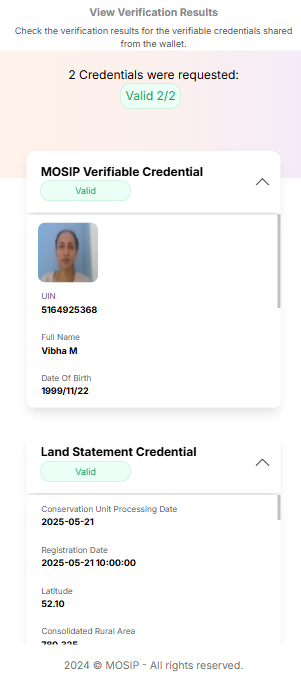
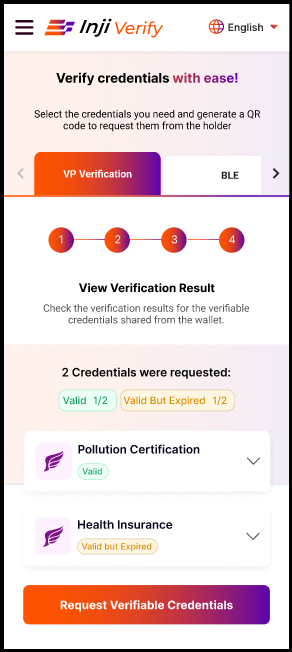
Inji Verify parses the `vp_token`, validates claims, and displays the results.\
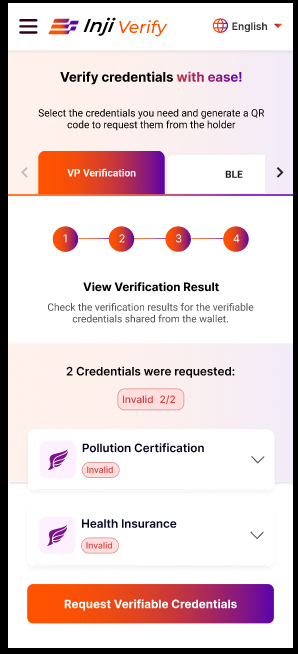
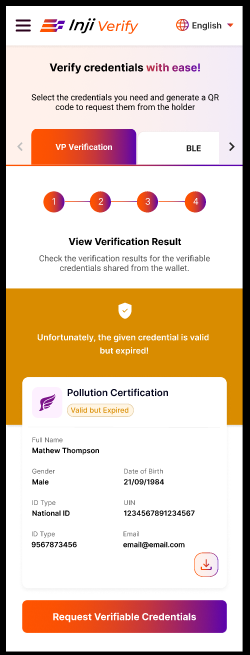
Credential status may be **Valid**, **Expired**, or **Invalid**.\
For multiple VCs, results are shown as expandable cards with tabular view for multi-attribute values.\
Options are provided to **Download JSON** or **Expand View**.
#### Credential Status Examples
* **Invalid VC display:**\
\&#xNAN;*Shows the credential marked as invalid.*
* **Expired VC:**\
\&#xNAN;*Shows the credential marked as expired.*
### Same Device Flow Scenarios
* **Scenario 1:** All credentials shared → List of credentials with status.
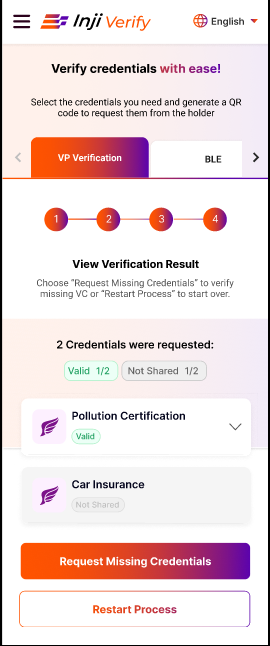
* **Scenario 2:** Partial sharing → Display missing credentials with options to **Request Missing Credentials** or **Restart Process**.
---
# Agent Instructions
This documentation is published with GitBook. GitBook is the documentation platform designed so that both humans and AI agents can read, navigate, and reason over technical content effectively. Learn more at gitbook.com.
## Querying This Documentation
If you need additional information that is not directly available in this page, you can query the documentation by asking a question.
Perform an HTTP GET request on the following URL with the `ask` and `goal` query parameters:
```
GET https://docs.inji.io/inji-verify/functional-overview/end-user-guide/vp-verification-same-device-flow.md?ask=&goal=
```
`ask` is the immediate question: it should be specific, self-contained, and written in natural language.
`goal` is what the user is ultimately trying to achieve, the reason they need the answer. Sharing it helps GitBook give you a better, more relevant answer. A goal is most helpful when it describes the outcome the user wants rather than restating the question. For example, with `ask=how do I create an API token`, a goal like `automate deployments from our CI pipeline` lets GitBook tailor the answer to that use case.
The response will contain a direct answer to the question and relevant excerpts and sources from the documentation.
Use this mechanism when the answer is not explicitly present in the current page, you need clarification or additional context, or you want to retrieve related documentation sections.