> For the complete documentation index, see [llms.txt](https://docs.inji.io/llms.txt). Markdown versions of documentation pages are available by appending `.md` to page URLs; this page is available as [Markdown](https://docs.inji.io/inji-verify/functional-overview/end-user-guide/error-handling.md).
# Error Handling
## **Error Handling**
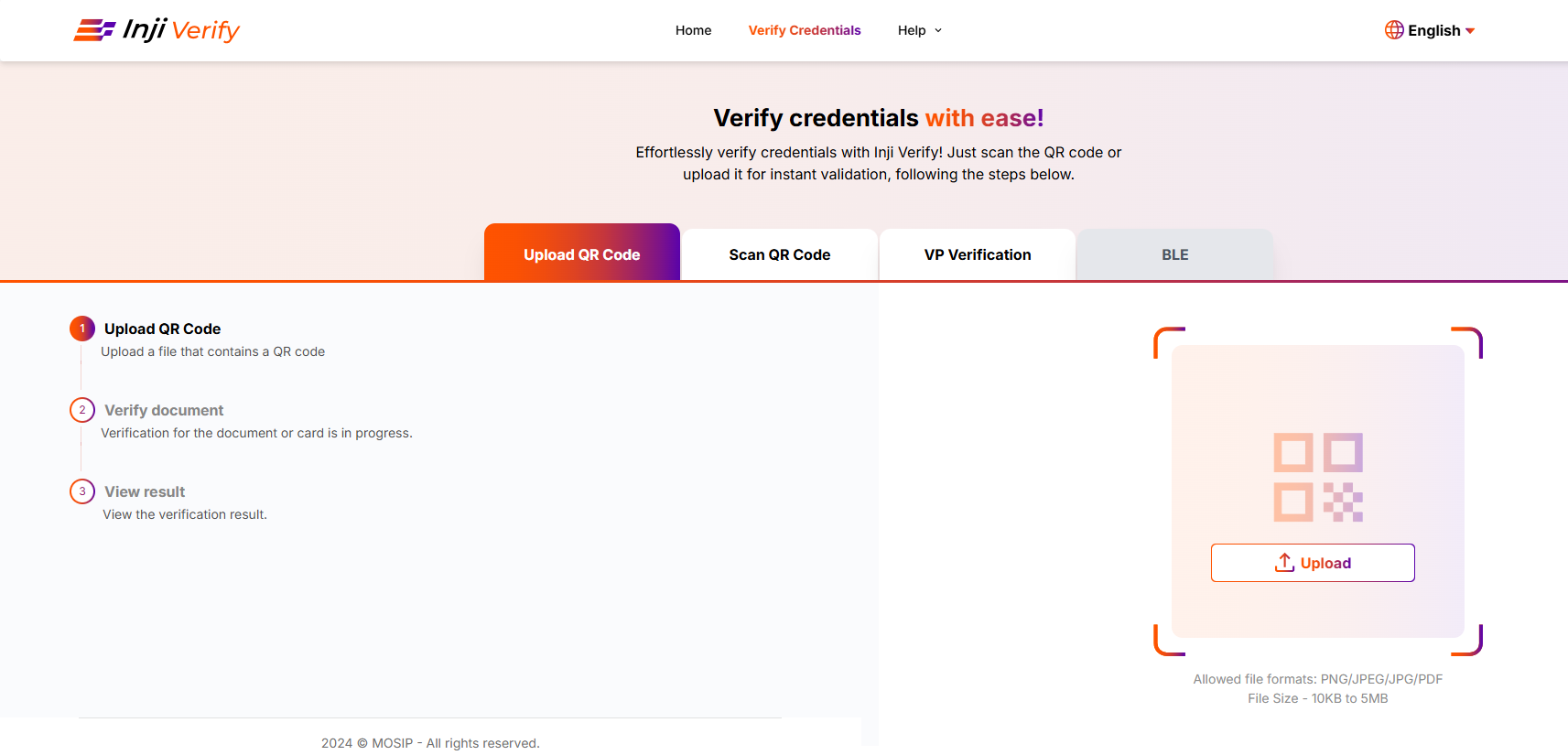
**Scenario 1:** If Pixel Pass encounters difficulties in decoding the data or encounters an unsupported QR code format, Inji Verify returns to the home screen.
* An error message stating "**QR code format not supported"** is displayed to the user.
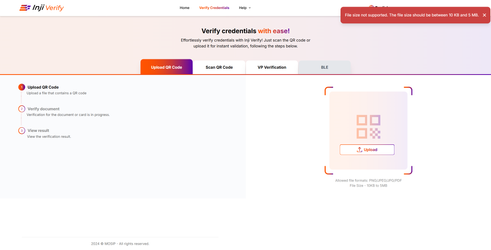
**Scenario 2:** If the QR code size or file size exceeds the permissible limit where the maximum size is 5MB, Inji Verify returns to the home screen.
* An error message stating "**File size not supported. The file should be between 10Kb and 5 MB.**"
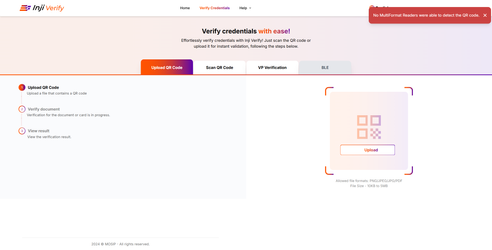
**Scenario 3:** If the QR code is unreadable or blurry then Inji Verify returns to the home screen.
* An error message stating **"No multi-format readers were able to read the QR code."**
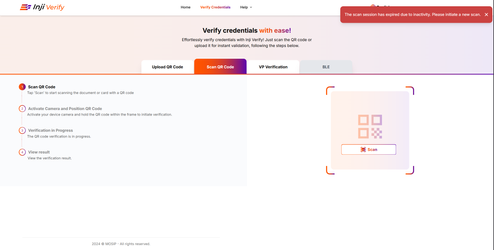
**Scenario 4:** If the user fails to scan the QR code within the 60-second timeframe then Inji Verify returns to the home screen.
* An error message stating "**The scan session has expired due to inactivity. Please initiate a new scan**."
**Scenario 5:** When a PDF containing VC is uploaded and the QR Code is not valid, then the following error message is displayed- 'Something went wrong with your request. Please check and try again.'
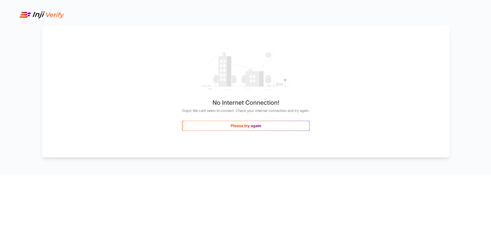
**Scenario 6:** If there is no internet connectivity, the following error message is displayed while using Inji Verify - 'No Internet Connection! Oops! We can't seem to connect. Check your internet connection and try again'
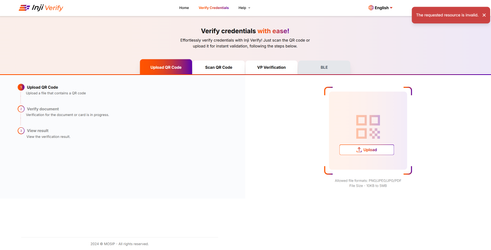
**Scenario 7:** When the request in the application url is invalid, the error message displayed- 'The requested resource is invalid'.
**Scenario 8:** When the server is down, then the error message displayed is - 'The service is currently unavailable. Please try again later'.
---
# Agent Instructions
This documentation is published with GitBook. GitBook is the documentation platform designed so that both humans and AI agents can read, navigate, and reason over technical content effectively. Learn more at gitbook.com.
## Querying This Documentation
If you need additional information that is not directly available in this page, you can query the documentation by asking a question.
Perform an HTTP GET request on the following URL with the `ask` and `goal` query parameters:
```
GET https://docs.inji.io/inji-verify/functional-overview/end-user-guide/error-handling.md?ask=&goal=
```
`ask` is the immediate question: it should be specific, self-contained, and written in natural language.
`goal` is what the user is ultimately trying to achieve, the reason they need the answer. Sharing it helps GitBook give you a better, more relevant answer. A goal is most helpful when it describes the outcome the user wants rather than restating the question. For example, with `ask=how do I create an API token`, a goal like `automate deployments from our CI pipeline` lets GitBook tailor the answer to that use case.
The response will contain a direct answer to the question and relevant excerpts and sources from the documentation.
Use this mechanism when the answer is not explicitly present in the current page, you need clarification or additional context, or you want to retrieve related documentation sections.